

Description
Download Ashampoo Backup Pro 11 – Secure Windows Backup, System Recovery & Ransomware Protection
Overview – Why Ashampoo Backup Pro 11 Stands Out for Windows Users
In today’s digital landscape, losing a single file or suffering a full‑system crash can mean lost work, missed deadlines, and costly downtime. Ashampoo Backup Pro 11 answers that threat with a comprehensive, Windows‑only backup and recovery suite that balances power with simplicity. Whether you’re a home user safeguarding personal photos and documents, a freelance web developer needing quick restores of website files, or a small office looking to protect multiple PCs from ransomware, this tool provides a layered defense that goes beyond basic copy‑and‑paste backups. Its core strength lies in the ability to create complete system images, schedule incremental backups, and generate a bootable rescue medium that can bring a dead PC back to life without reinstalling the OS or applications. The program also supports direct backup to local storage devices—such as SSDs, USB flash drives, or network shares—and offers limited cloud integration for those who prefer an off‑site copy. Security is baked in: every backup can be encrypted with AES‑256, and the rescue environment includes UEFI support, making it ready for modern hardware. The user interface follows a step‑by‑step wizard model, guiding you from selecting files or drives to setting up schedules and recovery options. While the visual design is functional rather than flashy, the clarity of the workflow reduces the learning curve for non‑technical users. In short, Ashampoo Backup Pro 11 delivers a reliable, affordable, and feature‑rich solution that helps Windows owners avoid the nightmare of data loss, ransomware attacks, or hardware failures.
Key Features That Make Ashampoo Backup Pro 11 a Complete Backup Solution
- Full System Imaging: Capture an exact replica of your Windows installation, including OS, applications, settings, and user data, enabling a one‑click restore to the exact state at the time of backup.
- Incremental & Differential Backups: After the first full backup, only changed files are stored, saving disk space and reducing backup windows.
- Bootable Rescue Media: Create a USB or ISO rescue disk with UEFI support that can boot even on a completely failed system, allowing you to restore without a working OS.
- AES‑256 Encryption: Protect your backups with strong encryption, ensuring that stolen drives or cloud copies remain unreadable to unauthorized parties.
- Ransomware‑Ready Recovery: Quickly roll back to a clean snapshot after a ransomware infection, avoiding the need to reinstall applications or re‑configure settings.
- Scheduled Backups & Automation: Define daily, weekly, or monthly backup plans, with options for automatic verification and email notifications.
- Multiple Destination Support: Save backups locally on HDD/SSD, external USB drives, network shares (SMB), or selected cloud services such as OneDrive and Google Drive.
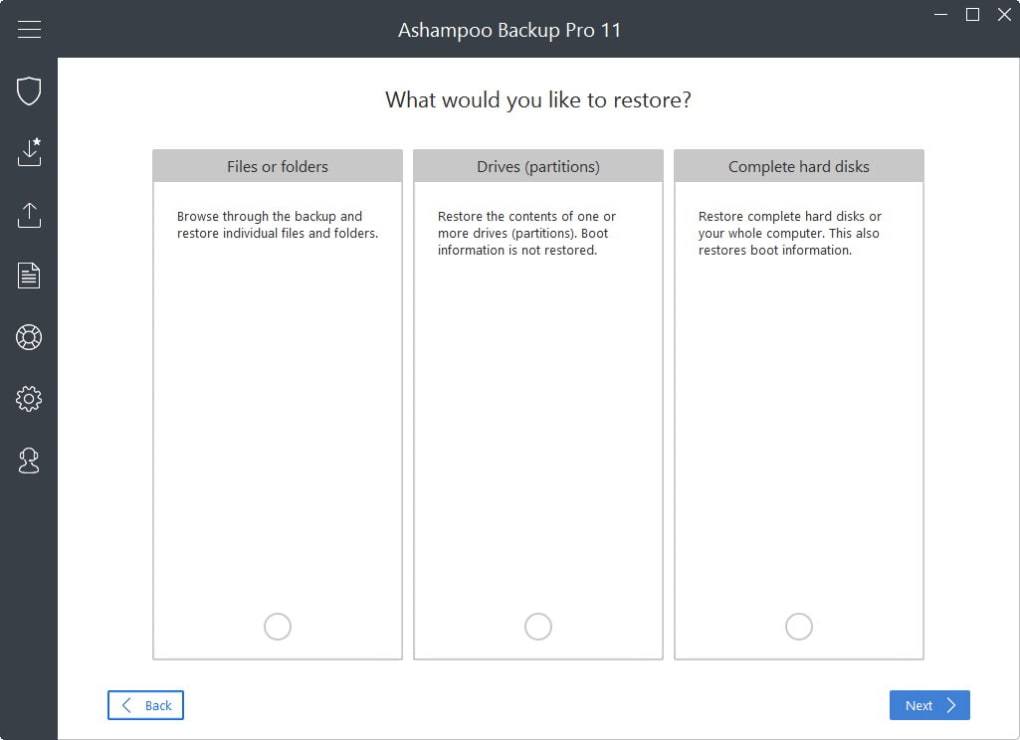
- File‑Level Restoration: Browse any backup image and restore individual files or folders without restoring the entire system.
- Integrated Disk Cloning: Clone a hard drive to a new SSD or HDD, making hardware upgrades painless and risk‑free.
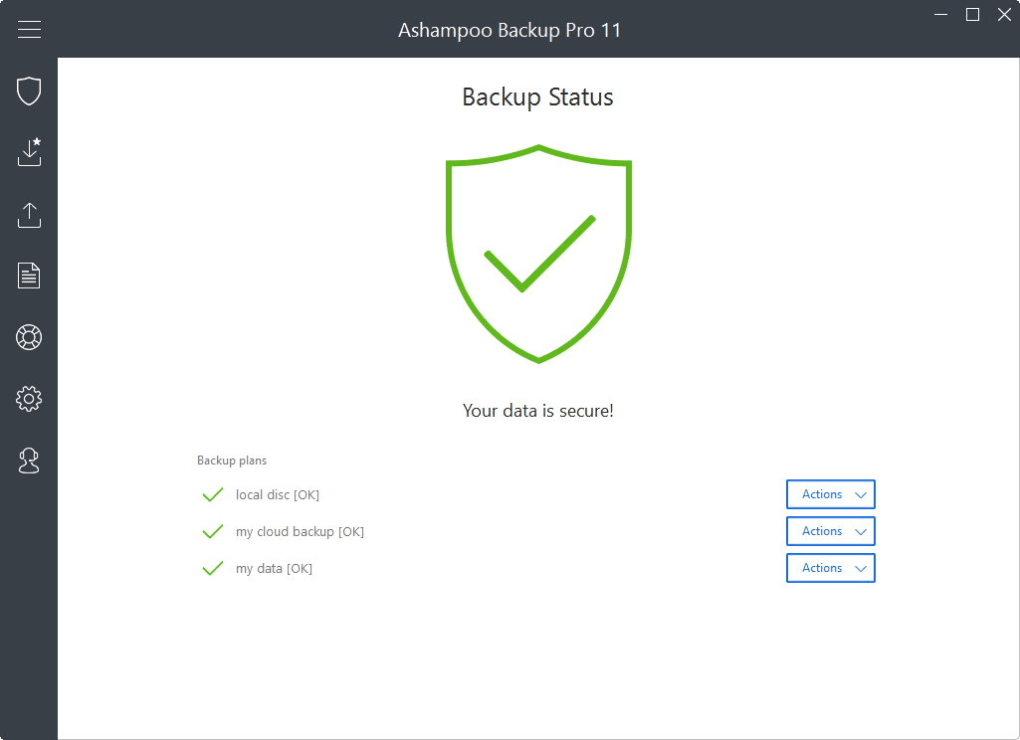
- Comprehensive Reporting: View detailed logs, backup health status, and storage usage through an intuitive dashboard.
Installation & Usage – Getting Started with Ashampoo Backup Pro 11
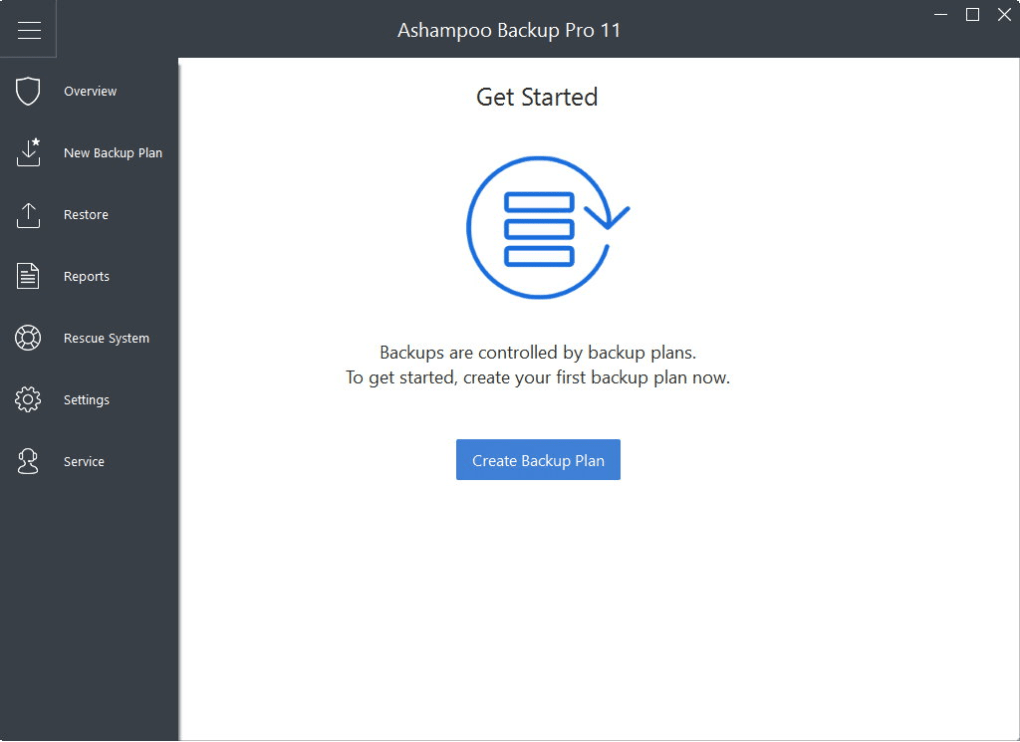
Installing Ashampoo Backup Pro 11 is straightforward. Begin by downloading the installer from the official Ashampoo website or a trusted software marketplace. Run the .exe file, accept the license agreement, and follow the on‑screen prompts. The installer automatically detects your Windows version (Windows 10, 11, or Windows 8.1) and installs necessary drivers for the rescue media builder. Once installed, launch the application; you’ll be greeted by a clean left‑hand navigation pane that groups functions into Dashboard, Backup Plans, Rescue System, Settings, and Help.
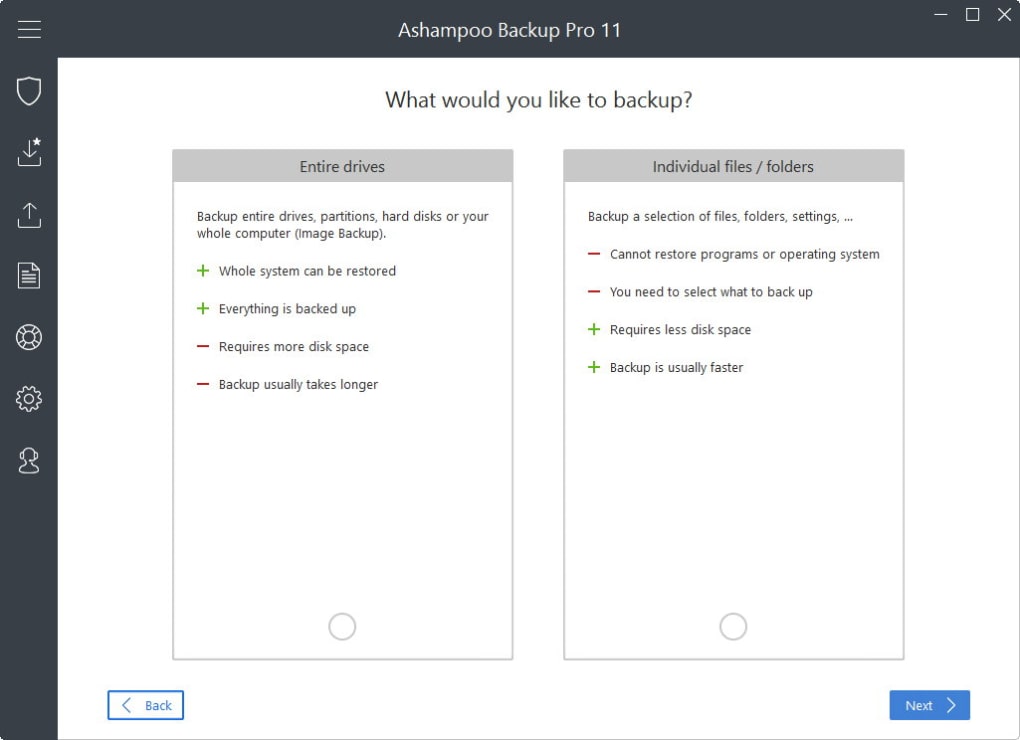
Creating Your First Backup – Click the Backup Plans tab and select “New Plan.” The wizard asks whether you want to back up individual files/folders or an entire drive. For home users, the “Full System Image” option is often the safest choice because it captures the OS, installed programs, and user data in a single file. After selecting the source, choose a destination: a local external SSD, a network share, or a supported cloud service. If you opt for cloud storage, you’ll be prompted to log in to your account and grant Ashampoo access. The next step lets you enable AES‑256 encryption and set a password—highly recommended for any sensitive data.
Scheduling & Automation – The wizard then offers scheduling options. Choose a daily backup at night for minimal disruption, or a weekly full image with incremental backups on other days. You can also enable “Verify Backup” to let the software automatically test the integrity of each backup after it completes. Once the plan is saved, Ashampoo runs silently in the background, showing progress in the system tray.
Restoring Files or Systems – In the event of data loss, open the Rescue System tab. If Windows still boots, you can select “Restore” and browse the backup catalog to pick individual files or launch a full system restore. For a completely dead PC, insert the previously created bootable USB, restart, and boot from the USB device. The rescue environment loads a lightweight Windows PE with the Ashampoo interface, allowing you to point to the backup image on an external drive and restore it with a few clicks. The entire process is designed to be user‑friendly, even for those with limited technical expertise.
Compatibility, System Requirements & Security Considerations
Ashampoo Backup Pro 11 is built exclusively for the Windows ecosystem. It supports 64‑bit editions of Windows 10, Windows 11, and Windows 8.1. The software requires a minimum of 2 GB RAM, 500 MB of free disk space for installation, and at least 10 GB of additional storage for backup images, although actual space needed varies with the size of the source data and chosen backup type. For optimal performance—especially when creating full system images or cloning drives—Ashampoo recommends a modern multi‑core processor (Intel i5 or AMD Ryzen 5 and above) and an SSD or high‑speed USB 3.0 external drive as the backup destination.
Security is a cornerstone of the application. All backup files can be encrypted with AES‑256, the industry‑standard encryption algorithm, and you can protect the encryption key with a strong password or a Windows user account. The rescue media also includes a secure boot option that works with UEFI firmware, preventing unauthorized tampering during the recovery process. Moreover, Ashampoo offers an optional “Secure Delete” feature that overwrites old backup images with random data, ensuring that deleted backups cannot be recovered by malicious actors.
From a network perspective, the software uses SMB 3.0 for accessing network shares, providing encrypted communication over LAN or VPN connections. When using cloud destinations, OAuth authentication is employed, meaning your cloud credentials are never stored in plain text on the local machine. Finally, Ashampoo provides regular updates—typically quarterly—that include bug fixes, compatibility patches for the latest Windows updates, and new features such as additional cloud integrations or improved ransomware detection heuristics.
Pros & Cons – Quick Verdict for Home and Small Business Users
Pros
- Comprehensive full‑system imaging and incremental backup options.
- Bootable rescue media with UEFI support for total system recovery.
- AES‑256 encryption ensures backup data remains confidential.
- User‑friendly wizard interface ideal for non‑technical users.
- Flexible destination choices: local drives, network shares, and select cloud services.
- Built‑in ransomware recovery workflow saves time after an attack.
- Affordable pricing with a single‑license model for home use.
Cons
- Windows‑only; no native macOS, Linux, Android, or iOS support.
- Cloud integration limited to a few providers; no direct support for Dropbox or Amazon S3.
- Interface, while functional, feels dated compared to modern SaaS backup platforms.
- Initial full system image can be large and may require substantial external storage.
- Advanced features such as centralized management for multiple PCs require a separate business license.
Frequently Asked Questions
Can I use Ashampoo Backup Pro 11 to back up my data to a cloud service?
Yes. The application supports direct backup to popular cloud services such as Microsoft OneDrive and Google Drive. You’ll need to sign in through the built‑in OAuth flow, after which you can select a cloud folder as the destination for your backups.
Is the backup data encrypted by default?
Encryption is optional but highly recommended. You can enable AES‑256 encryption during the backup plan setup and protect the encryption key with a strong password.
What should I do if my PC won’t boot after a ransomware attack?
Insert the bootable rescue USB you created with Ashampoo Backup Pro 11, boot from it, and use the built‑in recovery wizard to restore the latest system image. This restores both the operating system and all your files to the pre‑infection state.
Can I schedule automatic backups while I’m away from my computer?
Absolutely. The software allows you to set daily, weekly, or monthly schedules. Once configured, backups run in the background even if you’re not logged in, provided the PC is powered on and connected to the backup destination.
Does Ashampoo Backup Pro 11 support backing up multiple PCs from a single license?
The standard home license covers one Windows PC. For multiple machines, Ashampoo offers a business package that includes centralized management and volume licensing.
Conclusion – Secure Your Windows PC with Ashampoo Backup Pro 11 Today
Data loss is inevitable—whether it’s caused by accidental deletion, hardware failure, or ransomware. Ashampoo Backup Pro 11 equips Windows users with a robust, easy‑to‑use toolkit that not only backs up files but also protects entire systems, creates encrypted copies, and provides a bootable rescue environment. The combination of full‑system imaging, incremental backups, and a straightforward wizard interface makes it an ideal choice for home users and small offices that need reliable protection without a steep learning curve or exorbitant subscription fees. While the software is limited to the Windows platform and offers a modest set of cloud integrations, its core features—encryption, rescue media, and ransomware recovery—deliver tangible peace of mind. If you’re ready to safeguard your data, download Ashampoo Backup Pro 11 now, set up your first backup plan, and enjoy the confidence that comes with knowing you can restore your PC to a known‑good state at any moment.
Download Ashampoo Backup Pro 11 and start protecting your Windows environment today.
Ashampoo Backup Pro 11 delivers a comprehensive backup and recovery suite for Windows users. Its full‑system imaging, bootable rescue media, and strong AES‑256 encryption make it a solid choice for home and small‑business environments. The user‑friendly wizard reduces complexity, though the interface could benefit from a modern redesign. Overall, it provides excellent value for its price.
Guides & Tutorials for Ashampoo Backup Pro 11
How to install Ashampoo Backup Pro 11
- Click the Preview / Download button above.
- Once redirected, accept the terms and click Install.
- Wait for the Ashampoo Backup Pro 11 download to finish on your device.
How to use Ashampoo Backup Pro 11
This software is primarily used for its core features described above. Open the app after installation to explore its capabilities.
User Reviews for Ashampoo Backup Pro 11 0
No reviews found





